We have a Jetson AGX Orin dev kit for which we’re attempting to enable the LTC2990 configuration in the kernel. We followed the steps provided on the NVIDIA documentation for how to build and flash a kernel. After flashing the kernel, the Jetson no longer boots up. The power LED indicator turns on and so does the fan, but nothing is displayed on the monitor. Please find attached a document listing all the steps we have followed for building the kernel and flashing it to the Jetson. I have also included all of the log files (the document specifies the log file name for each step).
We would greatly appreciate it if you could let us know what we’re doing incorrectly?
it looks you’re not using identical release image.
please re-flash your target with JetPack-5.0.2, and compile its public release sources, l4t-r35.1
please check developer guide. Flashing a Specific Partition; your steps for flashing kernel is incorrect, since you’re not assign options to the flash script. it’ll full flash the target.
however,
please review your /boot/extlinux/extlinux.conf, it’s by default to check LINUX entry for loading kernel image, to check FDT entry for loading device tree blob via file system.
you may copy the binary files via scp and modify the extlinux configuration file instead of flashing the target.
please see-also developer guide, Switching to a Different Kernel for reference,
thanks
I used the SDK Manager application. I’ve attached the screenshot of the error. I also setup a serial console to check the Jetson’s UART logs. I’ve attached that as well, and yes, I have a monitor connected to both the host and the Jetson. The Jetson does boot up just fine after the flashing completes, but the SDK manager indicates a failure when I use JetPack version 5.0.2. uart.log (27.3 KB)
according to uart logs, it seems it’s abort during image flashing process.
could you please try deselect those components, please flashing target only for confirmation.
BTW,
SDKManager it’s able to generate reports, please gather the logs and share them as attachment for reference,
thanks
I am not using a virtual machine. And I have followed the instructions in those links. The unit is in force recovery mode when I want to flash the unit. I do not have this issue when I flash the unit with the JetPack 5.0.1 version. I only have this issue with JetPack 5.0.2 version which you suggested to use.
we’ve test and confirm Jetpack-5.0.2 to flash AGX Orin successfully.
so, could you please remove Jetpack installation folder and re-download the image to test again.
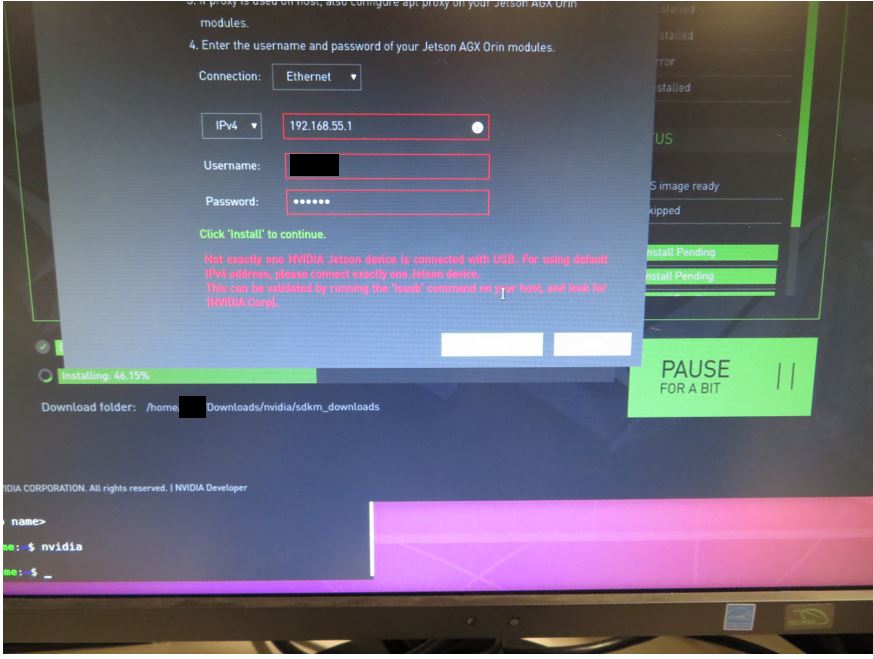
I’ve removed the Jetpack installation folder and re-downloaded the image multiple times. This time, we went ahead and enabled the SDK components too. The kernel portion installed fine. However, the SDK portion was yielding errors (attached are images of the errors) as well as our connection. It keeps saying that it detects more than one Jetson even though we only have one Jetson connected.
After multiple tries, we were able to flash the bare minimum JetPack 5.0.2. And fixed the flash.sh parameters that I missed, we were able to flash the kernel. However, we are still facing issues where the Jetson will not completely boot. It always gets stuck at a certain point:
[ 13.838607] using random self ethernet address [ 13.845701] using random host ethernet address
Please find attached a write up of what we’ve done as well as all the log files we have.
in page-19 of [Jetson_Kernel_Modification_Steps_v2.pdf], you may copy the built kernel image and copy it to your target instead of flashing the device.
you may check /boot/extlinux/extlinux.conf, it’s LINUX entry to load kernel image, and FDT entry for device tree blob.
besides, according to [Boot_Up.log] in the log attachment, it looks already boot-up file system.
these two messages also included in the normal boot-up Orin/r35.1 kernel logs. [ 14.055448] using random self ethernet address [ 14.060261] using random host ethernet address
I don’t see certain failure to cause boot hang.
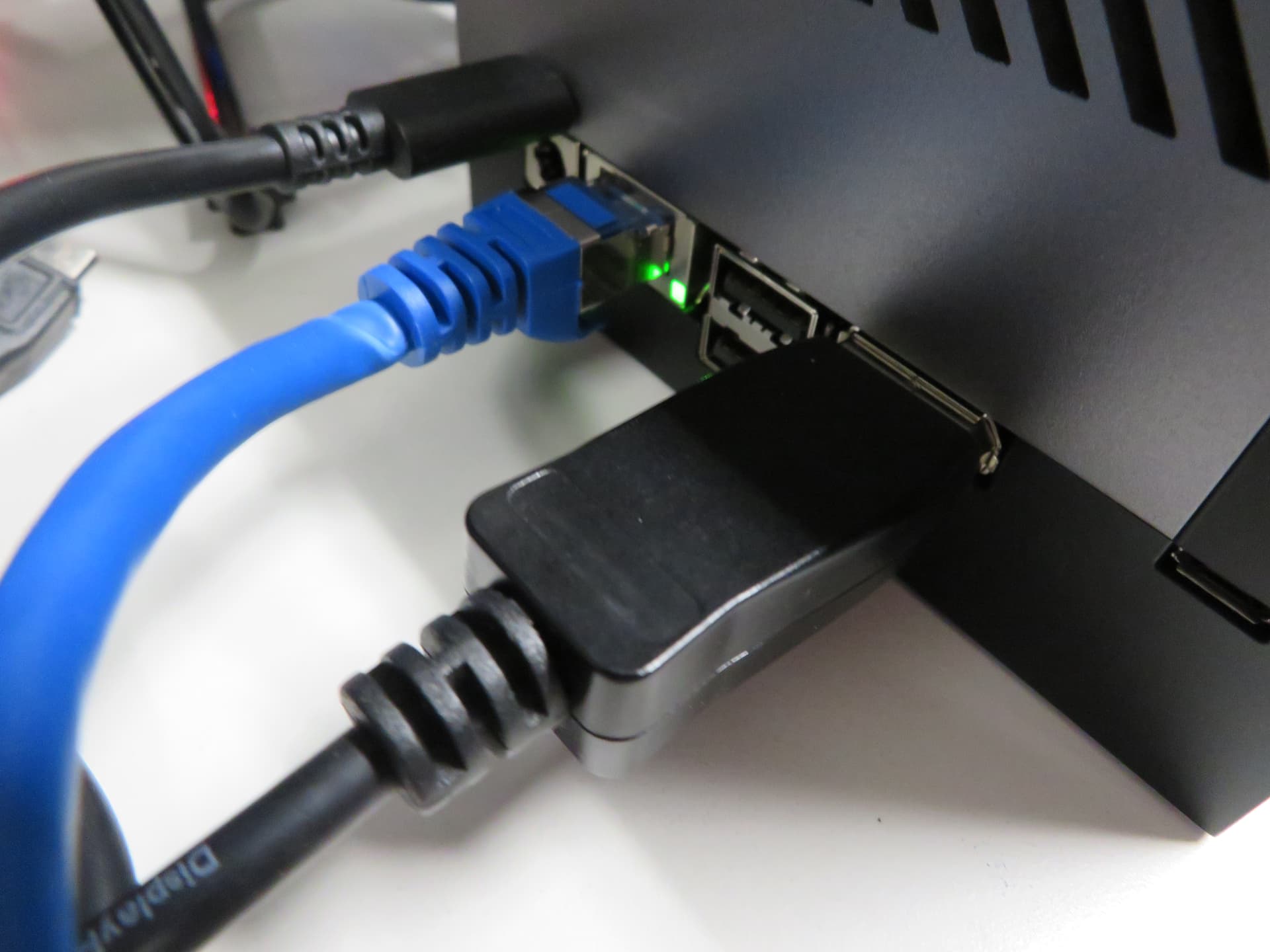
hence… could you please try removing all connected peripheral devices. or, please try a HDMI display monitor to test again.
thanks
you may copy the device tree binary with scp utility. and, modify the extlinux.conf to specify the file path. reboot the system to make the changes take effect.