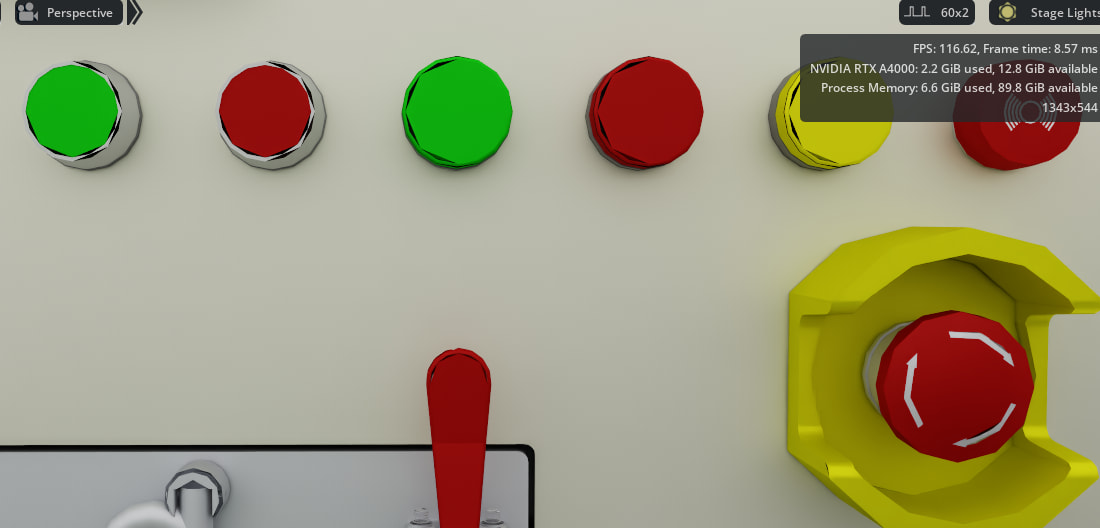
Hi,I am experiencing a regression in model quality when converting CAD files to USD format using different versions of Omniverse tools.
- In Omniverse Composer 2023.2.5: The conversion works perfectly. As shown in the attached image, the model surfaces are smooth and the geometry is intact.
In Kit App Template 109.0.2: Using the same source file, the resulting USD exhibits significant “mesh tearing” or “broken geometry” artifacts (as seen in the second image).
It appears that the tessellation or mesh processing behavior has changed between these versions. Are there specific settings in the newer Kit App Template (or the CAD Importer extension) that I should adjust to achieve the same smooth results found in the older Composer version?
Operating System:
Windows
Kit Version:
109.0.2 (Kit App Template)
Kit Template:
USD Composer
GPU Hardware:
A4000
GPU Driver:
Recommended (573.73)
It should come in the exact same in the latest version. There are several ways to import geometry. The easiest way is to just import it directly into USD Composer. What file format is your geometry in?
Hi @Richard3D ,my file format is .stp.
Well if you want to send me the stp file I can take a look.
Hi @Richard3D , I’m unbale to share the file because it involves confidential information. For now, I can only use the older version to perform the file conversion. If there are similar files in the future that I’m able to share, I’ll provide them to your for analysis. Thank you for your replay!
Ok thanks. I will close this for now, until I can get a sample file that shows this issue. Good luck.
Hello,
It looks like the documentation shares explicitly how you can switch to an old version in a new app, this might work for you short term. It looks like the settings are also very different between the versions. If you want to keep searching, I would look for options like weld faces, re-interpolate CVs and density as those look like the issues you’re facing. Good luck!
CAD Converter — omni.kit.converter.cad
Edit: It looks like there’s an option for Tessellation Level described in the documentation, but I don’t see how to use it, you might need to run the command in the script editor to get that option.
Stp format uses underlying Hoops converter for CAD_to_USD translation and the tessellation level can be changed as described in this section Usage — omni.kit.converter.hoops
Hi @preethampai ,
Thanks for your information. But I can't figure out how to setup the parameters. Did you know where can I choose this parameters or setup?
I Agree , info should’ve been elaborated/ made clear. the Tesselation level here is absracted into an attribute “iTessLOD” : 2, [0 → ExtraLow and 4- ExtraHigh]
follow instructions from here to manually create a usd file starting from any CAD format Building CAD to USD Workflows with NVIDIA Omniverse | NVIDIA Technical Blog
you will need to change “omni.services.convert.cad-506.2.3+107.3.0.u353” to the one you have in your AppData\Local\ov folder
are you able to share the “stp” of this subcomponent ? you can modify the scale/ dimension if you like to preserve proprietary data