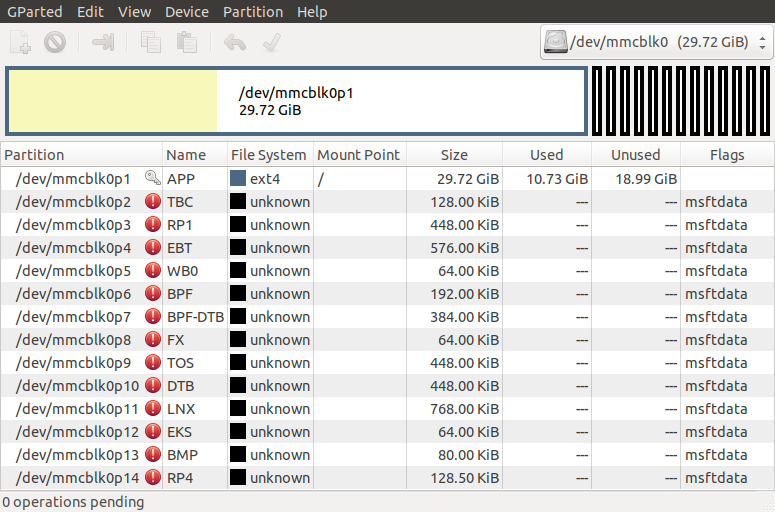
Also, even using gparted, can’t move any of those teeny partitions to the end of the filespace, probably due to the “filesystem” in those 13 little partitions not being recognized.
from #15:
If you follow the instruction to use Etcher tools to flash image on SD card, there should be no issue to utilize the entire SD card size, see https://developer.nvidia.com/embedded/learn/get-started-jetson-nano-devkit#write
If you have used SDK manager to flash image on Jetson Nano, you could run “create-jetson-nano-sd-card-image.sh” script to create image, then using Etcher tool to flash image on SD Card.
sudo ./create-jetson-nano-sd-card-image.sh -o sd-blob.img -s 16G -r 100
Using Etcher tool and select “sd-blob.img” image -> select SDcard -> Flash
After completed flash, plug-in SD Card to Jetson-Nano
Where do we run “create-jetson…”? From the desktop Ubuntu? In what directory? (Don’t have the Ubuntu machine in front of me.) Before or after everything else is run in SDK Manager?
Thanks,
David
Hi Skypuppy,
You can use SDK manager to download Image first, then find “create-jetson-nano-sd-card-image.sh” script file on below path:
/home/yourname/nvidia/nvidia_sdk/JetPack-4.2.1_Linux_GA_P3448/Linux_for_Tegra
Examples:
sudo ./create-jetson-nano-sd-card-image.sh -o <b>sd-blob.img</b> -s 16G -r 100
Please run this script file first, then using Etcher tool to flash generated image file from script.(sd-blob.img)
Gparted didn’t work for me but I used this method and am up and running with a 64g partition on a 64g SD card.
I am using 512 and had no problem. I flash the image, I boot the system, and by the time it’s done booting, it’s using the whole card. After that point it can be re partitioned but not before*.
Edit: *and even then it’s probably not a good idea, (only to shrink the last partition in order to add more, and even then I’m not sure it’s been tested)
I think it is so much fun when I search the entire host file system trying to find that “create-jetson-nano…” shell script THREE different times with zero success. What could be going on here? Am I looking on the wrong computer or something?
I’ve flashed a 64G SD card with the image created by create-jetson-nano-sd-card-image.sh.
The file system is now 64G so i’ve past that problem but when I try to perform the build steps in the “Building the Project from Source” section of Hello AI World, the build fails trying to build torchvision.
The build fails because libcudart is not installed.
I’m not sure where to go from here.
Very frustrating
Hi hallmanNet18,
Are you install all SDK components?
Please run the sdkmanager and install all components (include CUDA, AI, Computer vision, MMAPI…), then you can try to build again. Thanks!
I encountered exactly the same problem with the root partition expansion on boot. I have also the problem described here:
so I cannot use Etcher with my host SD card reader. The only possibility I have is to use flash over recovery mode. My solution is in two steps:
-
Download OS image via SDK manager (download only)
-
Flash procedure from Quick Start Guide
Use parameter -S in the ./flash.sh command. E.g.:
sudo ./flash.sh -S 24GiB jetson-nano-qspi-sd mmcblk0p1
2 Likes
carolyuu
I installed all components with SDK Manager and I tried it several times.
What I have found is that the entire /usr/local/cuda-10.0/targets/aarch64-linux path was missing.
The /etc/ld.so.conf.d directory was also missing the cuda-10.0.conf and deepstream.conf files.
I ran create-jetson-nano-sd-card-image.sh to create an image of what was flashed directly onto a separate SD card. That SD card only has the 14G partition but the cuda-10.0 path is there.
I am in the process of copying the missing directories from that SD card to my host linux computer and then after swapping SD cards in the Nano, I will copy them back to the 64G SD card in the Nano.
Hi hallmanNet18,
Suggest you can use at least 16/32 GB sdcard.
1 Like
Why only use -s 16G? Will it used all unallocated partition, e.g. for a 128 GB SDCard? I have an unallocated 105.08 GB at the end with a 128 GB SDcard.
I think better way is using Etcher with jetson-nano-sd-r32.2-2019-07-16.zip from the start.
Thank you.
Not sure if you solved this yet. But the file comes with the sdk manager. https://developer.nvidia.com/nvidia-sdk-manager and should be in /Linux_for_Tegra
Hi everyone.
I hit the same problem with 64G sdcard.
I did some study and found the reason, why original /etc/systemd/nvresizefs.sh script doesn’t work properly.
The SDK manager builds the following partition sequence by default in 16G space:
/dev/mmcblk0p1  :name="APP"
/dev/mmcblk0p2  :name="TBC"
/dev/mmcblk0p3  :name="RP1"
/dev/mmcblk0p4  :name="EBT"
/dev/mmcblk0p5  :name="WB0"
/dev/mmcblk0p6  :name="BPF"
/dev/mmcblk0p7  :name="BPF-DTB"
/dev/mmcblk0p8  :name="FX"
/dev/mmcblk0p9  :name="TOS"
/dev/mmcblk0p10 :name="DTB"
/dev/mmcblk0p11 :name="LNX"
/dev/mmcblk0p12 :name="EKS"
/dev/mmcblk0p13 :name="BMP"
/dev/mmcblk0p14 :name="RP4"
The main partition for data is “APP” and it goes the first one in the list.
So actually the rest of 13 partitions blocks it from expanding to a free space of sdcard.
The straight forward solution I made is to move all other partitions [mmcblk0p2…p14] to the end of the sdcard.
After that original script resizes the APP partition on the first boot automatically.
If somebody want to go this way, I can put an automatic script that relocates partitions to the end of the drive. Just leave here a message.
But the core problem should be fixed by Nvidia’s developers, simply moving APP partition to the end of partition list, i.e. /dev/mmcblk0p14
mdegans can you populate your partition structure please? you can use sudo sfdisk -d /dev/mmcblk0call
I would certainly like to go this way, my partition structure (after sudo sfdisk -d /dev/mmcblk0) is:
label: gpt
label-id: 00000000-0000-0000-0000-000000000000
device: /dev/mmcblk0
unit: sectors
first-lba: 40
last-lba: 62333918
table-length: 14

/dev/mmcblk0p1 : start=          40, size=    29360128, type=EBD0A0A2-B9E5-4433-87C0-68B6B72699C7, uuid=0C259A69-3F2D-4100-884C-6661F8C74633, name="APP"
/dev/mmcblk0p2 : start=    29360168, size=         256, type=EBD0A0A2-B9E5-4433-87C0-68B6B72699C7, uuid=0A5E07F4-9725-4C97-9B33-6727E2FEF753, name="TBC"
/dev/mmcblk0p3 : start=    29360424, size=         896, type=EBD0A0A2-B9E5-4433-87C0-68B6B72699C7, uuid=3448C881-CACC-4495-8523-340BDE3AFB06, name="RP1"
/dev/mmcblk0p4 : start=    29361320, size=        1152, type=EBD0A0A2-B9E5-4433-87C0-68B6B72699C7, uuid=4132DC35-27A1-4AD2-864B-1D08A4648A78, name="EBT"
/dev/mmcblk0p5 : start=    29362472, size=         128, type=EBD0A0A2-B9E5-4433-87C0-68B6B72699C7, uuid=3890BB3E-95F5-4EFE-87FC-3732C0390C05, name="WB0"
/dev/mmcblk0p6 : start=    29362600, size=         384, type=EBD0A0A2-B9E5-4433-87C0-68B6B72699C7, uuid=34BAC152-7522-4E08-81CA-D72D1D7A0973, name="BPF"
/dev/mmcblk0p7 : start=    29362984, size=         768, type=EBD0A0A2-B9E5-4433-87C0-68B6B72699C7, uuid=0FDC96F9-F479-4B19-A4FB-8D50BA2BF077, name="BPF-DTB"
/dev/mmcblk0p8 : start=    29363752, size=         128, type=EBD0A0A2-B9E5-4433-87C0-68B6B72699C7, uuid=20634AB4-472F-4432-95EC-662F1DE5882C, name="FX"
/dev/mmcblk0p9 : start=    29363880, size=         896, type=EBD0A0A2-B9E5-4433-87C0-68B6B72699C7, uuid=6532865C-391D-40CD-95AD-CF5F518E906F, name="TOS"
/dev/mmcblk0p10 : start=    29364776, size=         896, type=EBD0A0A2-B9E5-4433-87C0-68B6B72699C7, uuid=6D64D042-E0B1-4736-B38D-8843C398AD21, name="DTB"
/dev/mmcblk0p11 : start=    29365672, size=        1536, type=EBD0A0A2-B9E5-4433-87C0-68B6B72699C7, uuid=7BCCAB7D-B038-4EBC-A2D3-A828B387FF3C, name="LNX"
/dev/mmcblk0p12 : start=    29367208, size=         128, type=EBD0A0A2-B9E5-4433-87C0-68B6B72699C7, uuid=698ED7DA-1F68-40C6-97EC-893518931F22, name="EKS"
/dev/mmcblk0p13 : start=    29367336, size=         160, type=EBD0A0A2-B9E5-4433-87C0-68B6B72699C7, uuid=7FC4B55E-E91F-47C1-98CC-2B27B0767F34, name="BMP"
/dev/mmcblk0p14 : start=    29367496, size=         256, type=EBD0A0A2-B9E5-4433-87C0-68B6B72699C7, uuid=35CA5E41-9759-4503-8DF0-88273AF5A645, name="RP4"
My card is 32G and being able to move partitions 2 till 14 to the end of the diskspace would be very nice so I can extend partition 1.
Hi Lufus,
Please use “create-jetson-nano-sd-card-image.sh” script to resize your sdcard.
Jetson Nano FAQ: [url]https://devtalk.nvidia.com/default/topic/1064525/jetson-nano/jetson-nano-faq/[/url]
1 Like
Hi!
I don’t think you get the point in 16G image that comes from the start.
16G image is very convenient for backup and flashing. One can make “small” backup of full installation, once SDK manager has finished and all additional software and config done. And it’s important that it’s only 16G partition size backup. When you dump 128G card with DD and zip it, the size doesn’t matter much, though read speed is no 100M/s. But when you flash 128G image instead of 16G image it takes you 8 times longer, and in my case the write speed was about 4M/s. And I have several JNano kits for education project and have to keep them cloned.
So I would even suggest to remove auto-expansion script from the startup scripts. Just provide information to user how to run it.
SDKmanager is nice looking tool, why just not to fix the partition creation order in your scripts. It’s just a 30 minutes fix from your developers or even less.
to mbrg
I’ll try to make my script nice-looking and publish it tonight
Here comes the code.
#!/bin/bash

# Copyright (c) 2019, Lufus
#
# Redistribution and use in source and binary forms, with or without
# modification, are permitted provided that the following conditions
# are met:
#  * Redistributions of source code must retain the above copyright
#    notice, this list of conditions and the following disclaimer.
#  * Lufus name may not be used to endorse or promote products derived
#    from this software without specific prior written permission.
#
# THIS SOFTWARE IS PROVIDED BY THE COPYRIGHT HOLDERS ``AS IS'' AND ANY
# EXPRESS OR IMPLIED WARRANTIES, INCLUDING, BUT NOT LIMITED TO, THE
# IMPLIED WARRANTIES OF MERCHANTABILITY AND FITNESS FOR A PARTICULAR
# PURPOSE ARE DISCLAIMED.  IN NO EVENT SHALL THE COPYRIGHT OWNER OR
# CONTRIBUTORS BE LIABLE FOR ANY DIRECT, INDIRECT, INCIDENTAL, SPECIAL,
# EXEMPLARY, OR CONSEQUENTIAL DAMAGES (INCLUDING, BUT NOT LIMITED TO,
# PROCUREMENT OF SUBSTITUTE GOODS OR SERVICES; LOSS OF USE, DATA, OR
# PROFITS; OR BUSINESS INTERRUPTION) HOWEVER CAUSED AND ON ANY THEORY
# OF LIABILITY, WHETHER IN CONTRACT, STRICT LIABILITY, OR TORT
# (INCLUDING NEGLIGENCE OR OTHERWISE) ARISING IN ANY WAY OUT OF THE USE
# OF THIS SOFTWARE, EVEN IF ADVISED OF THE POSSIBILITY OF SUCH DAMAGE.

# This is a script to relocate partitions 2..14 to the end of mmcblk0 device
# and expands root partition and file system to maximum size of SD card without reboot

# Script can be executed right on jetson nano or any other linux machine.
# Just make sure that you SD card is /dev/mmcblk0 device

# Instructions:
# 1. open terminal
# 2. open a new file for edit  `nano jn_sd_resize.sh`
# 3. paste the code, save and exit nano
# 4. call `chmod +x jn_sd_resize.sh`
# 5.  run script with sudo `sudo ./jn_sd_resize.sh`

set -e

end_sector="$(sfdisk -d /dev/mmcblk0 | grep "last-lba:" | cut -d' ' -f2)"
echo "$end_sector"
echo "/dev/mmcblck0 device has $(($end_sector*512/1000/1000/1000))G size card"
echo "This script will move partitions p2..p14 to the end of /dev/mmcblk0 device"
size="$(cat /sys/block/mmcblk0/mmcblk0p1/size)"
echo "Current size of root file system is $(($size*512/1000/1000/1000))G"

# Move backup GPT header to end of disk
sgdisk --move-second-header /dev/mmcblk0

# Backup original partition table
# It can be used with command 'sudo sgdisk --load-backup=mmc_orig.ptt /dev/mmcblk0'
# to restore original partition in case of fail
sgdisk --backup=mmc_orig.ptt /dev/mmcblk0

# Read partition information into array
for p in {1..14}
do
    p_n[p]="$(sgdisk -i $p /dev/mmcblk0 | grep "Partition name" | cut -d\' -f2)"
    sleep 0.01
    p_t[p]="$(sgdisk -i $p /dev/mmcblk0 | grep "Partition GUID code:" | cut -d' ' -f4)"
    sleep 0.01
    p_u[p]="$(sgdisk -i $p /dev/mmcblk0 | grep "Partition unique GUID:" | cut -d' ' -f4)"
    sleep 0.01
    p_s[p]="$(cat /sys/block/mmcblk0/mmcblk0p$p/size)"
    sleep 0.01
done

# Calculate new locations for partitions
for p in {14..2}
do
    p_ed[p]=$end_sector
    p_st[p]=$(($end_sector-${p_s[p]}))
    end_sector=${p_st[p]}
done

# Save start sector for root partition
p_st[1]="$(cat /sys/block/mmcblk0/mmcblk0p1/start)"

echo "Partitions [1..14] read done"
echo "Saving data from parttions [2..14]..."
for p in {2..14}
do
    dd if=/dev/mmcblk0p"$p" of=~/.jnp-"$p".img
    echo "Backup partition $p: ${p_n[p]} ${p_t[p]} ${p_u[p]} ${p_s[p]} new start ${p_st[p]} end ${p_ed[p]}"
done
echo "Done"

for p in {14..2}
do
    # Relocate partition
    echo "Relocating ${p_n[p]} partition"
    sgdisk  -d $p -n $p:"${p_st[p]}":0 -c $p:"${p_n[p]}" -t $p:"${p_t[p]}" -u $p:"${p_u[p]}" /dev/mmcblk0
    sleep 0.5
done

partprobe /dev/mmcblk0

echo "Restore data to parttions [2..14]..."
for p in {2..14}
do
    dd of=/dev/mmcblk0p"$p" if=~/.jnp-"$p".img
    echo "Partition $p data restored"
    rm -f ~/.jnp-"$p".img
done

echo "Resizing root file system..."

# Extending root (APP) partition
sgdisk -d 1 -n 1:"${p_st[1]}":0 -c 1:"${p_n[1]}" -t $p:"${p_t[1]}" -u $p:"${p_u[1]}" /dev/mmcblk0

partprobe /dev/mmcblk0

# Resizing file system
resize2fs /dev/mmcblk0p1

sleep 0.5

size="$(cat /sys/block/mmcblk0/mmcblk0p1/size)"
echo "New size of root file system is $(($size*512/1000/1000/1000))G"
# Removing partition table backup
rm -f mmc_orig.ptt
instructions: (copy from script)
open terminal
  open a new file for edit  `nano jn_sd_resize.sh`
  paste the code, save and exit nano
  call `chmod +x jn_sd_resize.sh`
  run script with sudo `sudo ./jn_sd_resize.sh`
The script runs on jetson nano
No reboot needed
Restore original partition with command ‘sudo sgdisk --load-backup=mmc_orig.ptt /dev/mmcblk0’, if the script fails before “Resizing root file system…” message
I tested the script with 64G and 128G cards
It adopts to the card size automatically
10 Likes
Thank you so much @Lufus the script works great!!
My partitions now look like this (sudo sfdisk -d /dev/mmcblk0):
label: gpt
label-id: 00000000-0000-0000-0000-000000000000
device: /dev/mmcblk0
unit: sectors
first-lba: 40
last-lba: 62333918
table-length: 14

/dev/mmcblk0p1 : start=          40, size=    62326288, type=0FC63DAF-8483-4772-8E79-3D69D8477DE4, uuid=8A2ADA49-3FD8-4F7C-B138-6BAAE7774F7C, name="APP"
/dev/mmcblk0p2 : start=    62326328, size=         256, type=EBD0A0A2-B9E5-4433-87C0-68B6B72699C7, uuid=0A5E07F4-9725-4C97-9B33-6727E2FEF753, name="TBC"
/dev/mmcblk0p3 : start=    62326584, size=         896, type=EBD0A0A2-B9E5-4433-87C0-68B6B72699C7, uuid=3448C881-CACC-4495-8523-340BDE3AFB06, name="RP1"
/dev/mmcblk0p4 : start=    62327480, size=        1152, type=EBD0A0A2-B9E5-4433-87C0-68B6B72699C7, uuid=4132DC35-27A1-4AD2-864B-1D08A4648A78, name="EBT"
/dev/mmcblk0p5 : start=    62328632, size=         128, type=EBD0A0A2-B9E5-4433-87C0-68B6B72699C7, uuid=3890BB3E-95F5-4EFE-87FC-3732C0390C05, name="WB0"
/dev/mmcblk0p6 : start=    62328760, size=         384, type=EBD0A0A2-B9E5-4433-87C0-68B6B72699C7, uuid=34BAC152-7522-4E08-81CA-D72D1D7A0973, name="BPF"
/dev/mmcblk0p7 : start=    62329144, size=         768, type=EBD0A0A2-B9E5-4433-87C0-68B6B72699C7, uuid=0FDC96F9-F479-4B19-A4FB-8D50BA2BF077, name="BPF-DTB"
/dev/mmcblk0p8 : start=    62329912, size=         128, type=EBD0A0A2-B9E5-4433-87C0-68B6B72699C7, uuid=20634AB4-472F-4432-95EC-662F1DE5882C, name="FX"
/dev/mmcblk0p9 : start=    62330040, size=         896, type=EBD0A0A2-B9E5-4433-87C0-68B6B72699C7, uuid=6532865C-391D-40CD-95AD-CF5F518E906F, name="TOS"
/dev/mmcblk0p10 : start=    62330936, size=         896, type=EBD0A0A2-B9E5-4433-87C0-68B6B72699C7, uuid=6D64D042-E0B1-4736-B38D-8843C398AD21, name="DTB"
/dev/mmcblk0p11 : start=    62331832, size=        1536, type=EBD0A0A2-B9E5-4433-87C0-68B6B72699C7, uuid=7BCCAB7D-B038-4EBC-A2D3-A828B387FF3C, name="LNX"
/dev/mmcblk0p12 : start=    62333368, size=         128, type=EBD0A0A2-B9E5-4433-87C0-68B6B72699C7, uuid=698ED7DA-1F68-40C6-97EC-893518931F22, name="EKS"
/dev/mmcblk0p13 : start=    62333496, size=         160, type=EBD0A0A2-B9E5-4433-87C0-68B6B72699C7, uuid=7FC4B55E-E91F-47C1-98CC-2B27B0767F34, name="BMP"
/dev/mmcblk0p14 : start=    62333656, size=         257, type=EBD0A0A2-B9E5-4433-87C0-68B6B72699C7, uuid=35CA5E41-9759-4503-8DF0-88273AF5A645, name="RP4"
I commented out the last line in your script where the backup file is removed, but it was not necessary to revert. Very happy now being able to use the additional space on the SD card :-) Thx again!

@Lufus the script really works great for me too,
Thanks so much!